How to Fix Paytm Device Environment is Not Correct Issue?


Summary: Getting stuck at a billing counter while a queue of impatient people waits behind you is a universal nightmare. You open Paytm, ready to scan, only to be greeted by a cryptic white box: “Warning: Paytm device environment is not correct.”
It’s frustrating, right? Your phone was working fine five minutes ago, and now it’s acting like a high-security vault you’ve been locked out of. If you are staring at this error on your Android screen, don’t worry—your money is safe, and your phone isn’t broken. You’ve just hit a digital tripwire designed to keep hackers out, but it’s caught you by mistake.
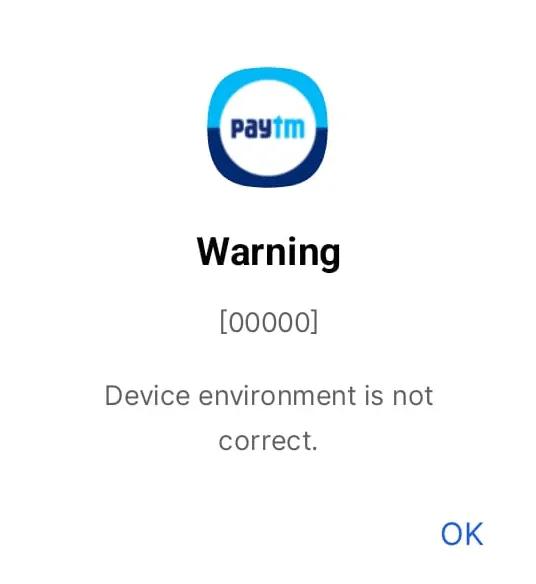
In this guide, we’ll break down exactly what this ” device environment is not correct Paytm means, why Paytm is suddenly being so picky, and—most importantly—how you can fix it in under five minutes.
Device Environment is Not Correct Paytm Meaning
In plain English, Paytm is performing a “health check” on your Android operating system every time you open the app. When it says the “environment is not correct,” it means the app has detected something in your phone’s settings that it considers a security risk.
Because Paytm handles UPI, wallets, and sensitive bank data, it follows strict RBI guidelines. If it senses that your phone’s software has been modified or if there’s a “bridge” open that a hacker could use, it simply shuts down to protect your bank account. It’s like a bank security guard refusing to let someone in because they are wearing a mask—even if that person is just a regular customer who forgot to take it off.
Why is This Happening? (Symptoms & Causes)
You might see this error out of nowhere, or after a recent software update. Here are the most common “red flags” that trigger the warning:
1. Developer Options are Enabled
This is the #1 culprit. Developer Options are meant for app coders, but if you’ve turned them on to change your animation speeds or use USB debugging, Paytm views this as an “unsecured” environment.
2. USB Debugging is Active
If your phone is set to communicate deeply with a computer via a cable, Paytm sees this as a potential doorway for data theft.
3. Using “Cloned” or “Dual” Apps
Many Indian users use the “Dual App” feature (like Parallel Space or built-in Samsung/Xiaomi Dual Messenger) to run two Paytm accounts. Paytm’s latest security updates often block these “clones” because they run in a simulated environment.
4. Rooted Devices
If you have “Rooted” your phone to get extra features, you’ve broken the Android security seal. Paytm (and most banking apps) will almost never run on a rooted device without complex workarounds.
5. Accessibility Services
Sometimes, third-party apps (like screen recorders or auto-clickers) use “Accessibility” permissions. Paytm might find these intrusive and block access.
Read Similar Article: Android Penetration Testing Guide
Quick Checklist to Fix the Incorrect Paytm Device Environment
Before we dive into the settings, try these “quick wins”:
- Restart your phone: Sounds cliché, but it clears temporary cache errors.
- Update the App: Go to the Play Store and ensure you aren’t running an ancient version of Paytm.
- Turn off Wi-Fi: Sometimes a “dirty” public Wi-Fi signal triggers security flags. Switch to mobile data.
Paytm Device Environment is Not Correct solution – Explained
If the quick checklist didn’t work, follow these steps in order.
#1 Disable Developer Options (The Most Effective Fix)
- Open your phone, Settings.
- Scroll down to System or Additional Settings.
- Look for Developer Options.
- If it’s “On,” toggle the switch to Off.
- Close Paytm completely (from the multitasking tray) and re-open it.
#2 Check for “Mock Location” or “USB Debugging”
If you absolutely need Developer Options on for work, you must at least turn off USB Debugging and Mock Location apps within that menu. Paytm specifically looks for these two.
#3 Clear Paytm App Cache & Data
Sometimes the app “remembers” a bad environment even after you’ve fixed it.
- Long-press the Paytm icon on your home screen.
- Tap App Info (the “i” icon).
- Go to Storage & Cache.
- Tap Clear Cache and then Clear Storage/Data.
Note: You will have to log in again with your OTP after this.
#4 Disable “Dual App” or App Cloners
If you are using a cloned version of Paytm, delete the clone. Use only the official app downloaded directly from the Google Play Store. If you need two accounts, use the “Add Bank Account” feature within the main app instead.
The Downside of Manual Fixes
While the steps above usually solve the Paytm device environment is not correct problem, there are some trade-offs:
- Loss of Customization: If you are a power user who uses Developer Options to make your phone faster or for work (ADB), turning them off is a hassle.
- Re-Login Hassle: Clearing data means you need your SIM card active in the phone to receive the verification SMS, which can be annoying if you’re in a low-signal area.
- Rooting Dilemma: If your phone is rooted, “fixing” the environment usually requires un-rooting the device entirely, which many tech enthusiasts are reluctant to do.
Frequently Asked Questions (FAQs)
Q: Is my Paytm account hacked?
A: No. This error is a preventative measure. It means your phone’s software is “open,” not that someone has accessed your money.
Q: Can I use Paytm on a rooted phone?
A: Generally, no. While tools like Magisk (Zygisk) can hide root status, Paytm is constantly updating its detection. It is safer to use a non-rooted device for banking.
Q: I turned off Developer Options, but I still see the error. Why?
A: You likely have an app installed that uses “Accessibility” permissions in a way that mimics a screen scraper. Try disabling apps like “Auto-Clickers” or “Screen Overlays.”
Conclusion
The “Paytm device environment is not correct” error is definitely a mood-killer, especially when you’re trying to make a quick payment. However, it’s a sign that the app’s security systems are working as intended. In 90% of cases, simply turning off Developer Options or USB Debugging will get you back to scanning and paying in no time.
Your digital safety is worth the minor inconvenience of toggling a few settings. Keep your app updated, avoid “modded” versions of Android, and your Paytm experience should remain smooth and secure.
What Read Next: How to Download Aadhaar Card PDF Online?